
CDPAP Resources for Consumers & Designated Representatives
Browse videos, guides, and other materials on navigating consumer direction with PPL.
Important Payroll Reminders
- All time entries, including paper timesheets, must be submitted for approval by 11:59 p.m. ET on Saturday.
- Consumers/DRs must approve PA hours by 12 p.m. (noon) ET every Sunday. Timesheets will not be paid until the consumer or DR approves through approved systems. For help, call PPL at 1-833-247-5346.
- CDPAP personal assistants (PAs) are paid weekly, on Thursdays, via direct deposit or paper check, based on their chosen method.
- Notice: Live-In/Per-Diem Service Code Policy
Consumers with service codes T1020, 2405, and 2406 are allowed a flat 13-hour payment for only one PA per day. Any additional timesheets — whether from the same or a different PA — will be denied with the message, “This is not allowed for Per-Diem service code.”
Understanding PPL’s CDPAP Systems
PPL@Home
PPL@Home is the online system personal assistants (PAs) and consumers use to register with PPL, manage their information and authorizations, and view the status of timesheets.
PPL@Home Self-Registration for Consumers

PPL@Home Mobile Registration for Consumers
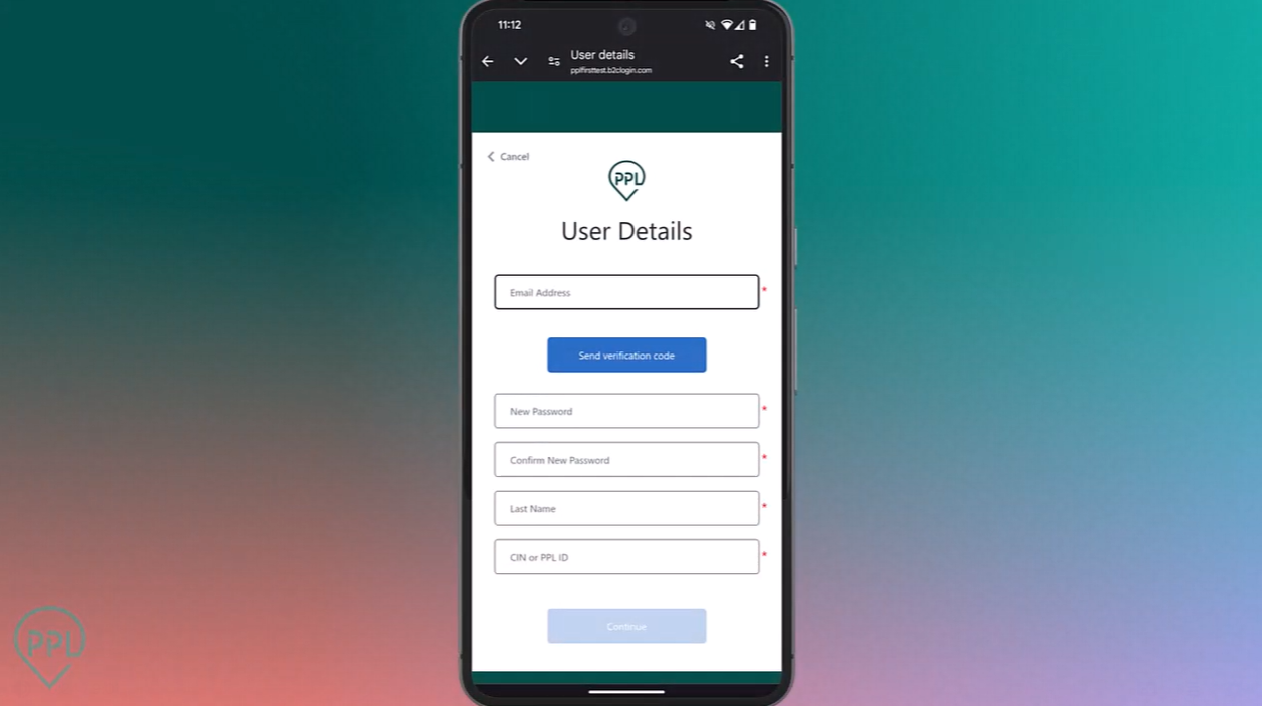
Time4Care™
Time4Care is PPL’s highly rated mobile app for PAs and consumers to manage their time and pay. Time4Care can be downloaded from the Apple App Store or Google Play Store depending on your device. More information on Time4Care is available below.
PPL Registration & Login Information
Below are the steps to register with PPL as the statewide fiscal intermediary for CDPAP. If you need help, contact PPL at 1-833-247-5346, sign up for a virtual registration session or in-office appointment, or contact your CDPAP facilitator if you work with one.
Consumer Registration Steps
Step 1: Health Plan / LDSS Approval
Before registering with PPL, consumers must receive approval from a health plan or Local Department of Social Services (LDSS) and complete the required assessment. Consumers who have not had an assessment should contact the New York Independent Assessor Program (NYIAP) at 1-855-222-8350 (TTY 1-888-329-1541).
Step 2: Assessment & Approval
If approved for CDPAP, the health plan or LDSS will send a referral or authorization to PPL. Once PPL receives the authorization, we will contact the consumer to begin the registration process.
Step 3: Create a PPL@Home Account or Log in
To complete the registration process online, sign up for or create a PPL@Home account. This is where you will enter your information, sign the required Memorandum of Understanding (MOU), and view and manage information going forward.
PPL@Home Email Signup PPL@Home Mobile Signup PPL@Home Email Sign in PPL@Home Mobile Sign inStep 4: Download Time4Care
To view and approve PA timesheets in PPL’s Time4Care™ app, download the app using the links below and log in with the same details you use for PPL@Home.
Download Time4Care on Apple App Store Download Time4Care on Google PlayConsumers can also approve PA timesheets in PPL@Home or by calling 1-833-278-3959 to use our telephony system. Consumer telephony instructions can be found here.
Keeping Personal Information Safe
The resources below are to help the CDPAP community stay safe from attempts to compromise personal information.
Preventing Communications Phishing Scam Attempts

Recognizing Fake Advertisement Phishing Scams

Timekeeping
PPL offers multiple timekeeping options to accommodate the different needs of CDPAP consumers and personal assistants while maintaining electronic visit verification (EVV) compliance. A full guide to entering and approving time is available here in English and here in Spanish. A recording of a recent webinar on entering time with PPL is available here in Spanish.
Time4Care™
Time4Care is PPL’s EVV-compliant mobile app that personal assistants use to clock in and out of their shifts, view pay information, and manage their time. Consumers use Time4Care to approve time for their PAs.
Approving Timesheets in Time4Care for Consumers
Time4Care App Setup

Time4Care – Service Auth Limits
Time4Care – Approving Time Entries for Consumers

Approving Time Entries for Designated Representatives
Telephony
Calling in to PPL’s telephony system is the other EVV-compliant way for PAs to clock in and out of shifts. Entries must be submitted via the phone number the consumer registered with in PPL@Home.
Telephony System for Consumers
 Telephony Guide for Consumers
Consumer Telephony System Walkthrough – English
Telephony Guide for Consumers – Español
Consumer Telephony System Walkthrough – Français
Consumer Telephony System Walkthrough – Simplified Chinese
Telephony Guide for Consumers
Consumer Telephony System Walkthrough – English
Telephony Guide for Consumers – Español
Consumer Telephony System Walkthrough – Français
Consumer Telephony System Walkthrough – Simplified Chinese
Consumer Telephony Instructions
- Dial 1-833-278-3959.
- Select your preferred language.
- Select option 2 to indicate you are the consumer calling to review submitted time.
- Enter your 8-digit date of birth. For example, if you were born on July 1, 1998, you would enter 07011998.
- Enter just the numbers from your PPL ID (do not include the letters “PRC-NY”).
- Listen to the details of the PAs you are associated to.
- Select the number that corresponds to the PA you are calling to approve time for. For example, “Press 1 for Jane Doe.” “Press 2 for John Smith.”
- Listen to the details of each shift submitted for your review.
- Select the shift for approval.
- To approve a shift, select 1. To reject, select 2. To hear the details again, select 3.
- If shifts are approved, the call will end. If rejected, you will be prompted to select one of the following reasons for the rejection:
- 1 if hours worked are inaccurate.
- 2 if days worked are inaccurate.
- 3 for other.
- Select 1 to confirm the reason you selected is correct, or 2 to reselect the reason.
Telephony System for DRs
 DR Telephony System Walkthrough – English
DR Telephony System Walkthrough – Español
DR Telephony System Walkthrough – Français
DR Telephony System Walkthrough – Simplified Chinese
DR Telephony System Walkthrough – English
DR Telephony System Walkthrough – Español
DR Telephony System Walkthrough – Français
DR Telephony System Walkthrough – Simplified Chinese
DR Telephony Instructions
- Dial 1-833-278-3959.
- Select your preferred language.
- Select option 3 to indicate you are the designated representative calling to review submitted time.
- Enter your 8-digit date of birth. For example, if you were born on July 1, 1998, you would enter 07011998.
- Enter just the numbers from your PPL ID (do not include the letters “PRC-NY”).
- If no consumers are found, you will be prompted to try your call again, and the call will end. If consumers are found, select the individual for whom you are the designated representative.
- Select the number that corresponds to the PA you are calling to approve time for. For example, “Press 1 for Jane Doe.” “Press 2 for John Smith.”
- Listen to the details of each shift submitted for your review.
- Select the shift for approval.
- To approve a shift, select 1. To reject, select 2. To hear the details again, select 3.
- If shifts are approved, the call will end. If rejected, you will be prompted to select one of the following reasons for the rejection:
- 1 if hours worked are inaccurate.
- 2 if days worked are inaccurate.
- 3 for other.
- Select 1 to confirm the reason you selected is correct, or 2 to reselect the reason.
Paper Timesheets
In certain cases, consumers and personal assistants may request an exception to use paper timesheets. Whenever possible, an EVV compliant timesheet submission is required. Exceptions to this can be requested through completing PPL’s exception form.
This option is available for those who meet the below criteria and their case manager verifies:
- The consumer/DR or PA does not use electronics every day of the week due to a sincerely held religious belief (consumer/DR or PA with one day of observation does not justify a PTE, they should use EVV compliant methods on all days they are able).
- The consumer does not have access to the internet and does not have a landline telephone in their residence.
- There is another exceptional circumstance that prevents a consumer/DR or PA from using an electronic method of timekeeping.
Paper timesheets can be requested by calling 1-833-247-5346 or submitting an exception form via fax, mail, or email.
- Mail: 17 Plaza Drive, Latham, NY 12110
- Fax: 1-844-244-4384
- Email: NYCDPAP_TS@pplfirst.com
Consumer Timesheet Approvals
Approving PA timesheets is an important part of consumer direction. This verifies that the time the PA submitted is accurate. In CDPAP, consumers must approve their PAs’ timesheets no later than 12 p.m. (noon) ET every Sunday. PA timesheets must be submitted for approval by Saturdays at 11:59 p.m. ET.
Approving Time Entries: Choose Any Method
With the exception of paper timesheets, time entries do not have to be approved through the same method the PA used to submit them. Consumers can choose the system they prefer.
Timesheet Submission Method
Submitted in Time4Care →
Submitted in Telephony →
Submitted on a Paper Timesheet →
Submitted in PPL@Home (Not EVV-Compliant) →
Consumer or DR Approval Method
Approve in Time4Care, PPL@Home, or Telephony
Approve in Time4Care, PPL@Home, or Telephony
Approve on a Paper Timesheet
Approve in PPL@Home
Approving Time in Time4Care™
Guide: Approving Timesheets in Time4Care for Consumers
- Download the Time4Care app from the Apple App Store or Google Play Store.
- Log in using your PPL@Home credentials.
- Go to your dashboard in the Time4Care app.
- On your dashboard, you will see all time entries from your PAs that are waiting for your approval. You can either tap the individual entries or “View All” to see all of the entries.
- You will be brought to the list view where you can view all entries awaiting your approval. To select multiple entries, tap the radio buttons to the right of each entry you would like to approve or reject, or tap “Select All” to select all entries.
- If you select multiple entries, you will be able to approve or reject the batch directly from the list view.
- If you tap a single entry, you will be brought to a new screen where you can confirm that the shift entered by your PA is accurate.
- If the entry looks correct, you can tap “Approve.” You will then see a pop-up confirming the entry has been approved.
- If the entry looks incorrect for any reason, you can tap “Reject.” This will bring you to a new screen where you can select the reason(s) why the entry was rejected.
- After you have tapped on the reason(s) you are rejecting the time entry, tap the “Reject” button. You will see a pop-up confirming the entry has been successfully rejected.
- Your PA will see any approved or rejected entries in their own Time4Care dashboard. If an entry has been rejected, your PA can edit the rejected entry and resubmit it for your approval.
Approving Time in PPL@Home
PPL@Home – Consumer Timesheet Approval Process
 Guide: Approving Time in PPL@Home for Consumers
- In your PPL@Home dashboard, go to the Timesheet tab
- Click or tap View to see the shifts that were entered and submitted by the PA
- If everything is correct, hit the approve button; if anything is incorrect, hit the reject button
- Rejecting the timesheet will prompt the PA to correct and resubmit the timesheet for approval

PPL@Home – Designated Representative Timesheet Approval Process
 Guide: Approving Time in PPL@Home for Designated Representatives
- In your PPL@Home dashboard, go to the Associated Consumers tab
- Click or tap Manage Consumer — this will take you to the consumer’s dashboard
- Go to the Timesheet tab
- Click or tap View to see the shifts that were entered and submitted by the PA
- If everything is correct, hit the approve button; if anything is incorrect, hit the reject button
- Rejecting the timesheet will prompt the PA to correct and resubmit the timesheet for approval


Approving Time in Telephony
Telephony – Consumer Approval
 Telephony Guide for Consumers
 – Español
Consumer Telephony System Walkthrough – English
Consumer Telephony System Walkthrough – Español
Consumer Telephony System Walkthrough – Français
Consumer Telephony System Walkthrough – Simplified Chinese
Telephony Guide for Consumers
Telephony Guide for Consumers – Español
Consumer Telephony System Walkthrough – English
Consumer Telephony System Walkthrough – Español
Consumer Telephony System Walkthrough – Français
Consumer Telephony System Walkthrough – Simplified Chinese
Consumer Telephony Instructions
- Dial 1-833-278-3959.
- Select your preferred language.
- Select option 2 to indicate you are the consumer calling to review submitted time.
- Enter your 8-digit date of birth. For example, if you were born on July 1, 1998, you would enter 07011998.
- Enter just the numbers from your PPL ID (do not include the letters “PRC-NY”).
- Listen to the details of the PAs you are associated with.
- Select the number that corresponds to the PA you are calling to approve time for. For example, “Press 1 for Jane Doe.” “Press 2 for John Smith.”
- Listen to the details of each shift submitted for your review.
- Select the shift for approval.
- To approve a shift, select 1. To reject, select 2. To hear the details again, select 3.
- If shifts are approved, the call will end. If rejected, you will be prompted to select one of the following reasons for the rejection:
- 1 if hours worked are inaccurate.
- 2 if days worked are inaccurate.
- 3 for other.
- Select 1 to confirm the reason you selected is correct, or two to reselect the reason.
Telephony – DR Approval
DR Telephony System Walkthrough – English
DR Telephony System Walkthrough – Español
DR Telephony System Walkthrough – Français
DR Telephony System Walkthrough – Simplified Chinese
DR Telephony Instructions
- Dial 1-833-278-3959.
- Select your preferred language.
- Select option 3 to indicate you are the designated representative calling to review submitted time.
- Enter your 8-digit date of birth. For example, if you were born on July 1, 1998, you would enter 07011998.
- Enter just the numbers from your PPL ID (do not include the letters “PRV-NY”).
- If no consumers are found, you will be prompted to try your call again, and the call will end. If consumers are found, select the individual for whom you are the designated representative.
- Select the number that corresponds to the PA you are calling to approve time for. For example, “Press 1 for Jane Doe.” “Press 2 for John Smith.”
- Listen to the details of each shift submitted for your review.
- Select the shift for approval.
- To approve a shift, select 1. To reject, select 2. To hear the details again, select 3.
- If shifts are approved, the call will end. If rejected, you will be prompted to select one of the following reasons for the rejection:
- 1 if hours worked are inaccurate.
- 2 if days worked are inaccurate.
- 3 for other.
- Select 1 to confirm the reason you selected is correct, or two to reselect the reason.
Approving Time Using Paper Timesheets
- Fill out one paper timesheet per PA
- Sign and date the timesheet using blue or black ink
- Submit completed timesheets via fax, email, or physical mail:
- Mail: 17 Plaza Drive, Latham, NY 12110
- Fax: 1-844-244-4384
- Email: NYCDPAP_TS@pplfirst.com
Program Documents for Consumers & DRs
Procedures & Information
Designated Representative Form
Memorandum of Understanding (MOU)
Memorandum of Understanding (MOU) – Arabic
Memorandum of Understanding (MOU) – Bangla
Memorandum of Understanding (MOU) – French
Memorandum of Understanding (MOU) – German
Memorandum of Understanding (MOU) – Haitian Creole
Memorandum of Understanding (MOU) – Italian
Memorandum of Understanding (MOU) – Japanese
Memorandum of Understanding (MOU) – Korean
Memorandum of Understanding (MOU) – Polish
Memorandum of Understanding (MOU) – Portuguese
Memorandum of Understanding (MOU) – Russian
Memorandum of Understanding (MOU) – Spanish
Memorandum of Understanding (MOU) – Urdu
Memorandum of Understanding (MOU) – Yiddish
Memorandum of Understanding (MOU) – Simplified Chinese
Memorandum of Understanding (MOU) – Traditional Chinese
Time4Care™
Time4Care Guide – Simplified Chinese
Time4Care Guide – Traditional Chinese
How to Guides
Approving Time in PPL’s Telephony System – For Consumers
How to Manage Time with PPL – Spanish
Payroll Documents
NY CDPAP Paper Timesheet – Exception Required